



If you have ever opened your hosting control panel and seen a warning that says something like “opcode cache is not enabled,” you probably closed the tab and moved on. Most WordPress owners do. The warning looks technical, it does not explain what will actually happen if you ignore it, and there is no obvious “fix it” button sitting next to it.
Here is the short version before we go deep: OPcache is one of the few server-side settings that can cut your PHP processing time in half without touching a single line of your theme or plugin code. It costs nothing, it is already built into your PHP installation, and in most cases it is just switched off or badly configured. That is the gap this guide closes.
We manage WordPress performance issues for clients every week at Skills Nexus Pro, and OPcache is one of those settings that gets skipped constantly, not because it is hard, but because nobody explains it in plain language. So let’s fix that.
Table of Contents
- What OPcache Actually Is
- How PHP Handles a Request Without OPcache
- What Changes Once OPcache Is Turned On
- OPcache vs Object Cache vs Page Cache (The Confusion Ends Here)
- How to Check If OPcache Is Already Enabled
- How to Enable OPcache on Different Hosting Setups
- Recommended OPcache Settings for a WordPress Site
- Common Mistakes That Cause “Opcode Cache Is Not Enabled” Warnings
- Does OPcache Affect SEO and Core Web Vitals
- OPcache Checklist Table
- Frequently Asked Questions
1. What OPcache Actually Is
PHP is what is called an interpreted language. Every time someone loads a page on your WordPress site, the PHP files that make up WordPress core, your theme, and your plugins have to be read from disk, parsed, and converted into something the server can actually execute. That conversion step produces what is called bytecode, sometimes referred to as opcode.
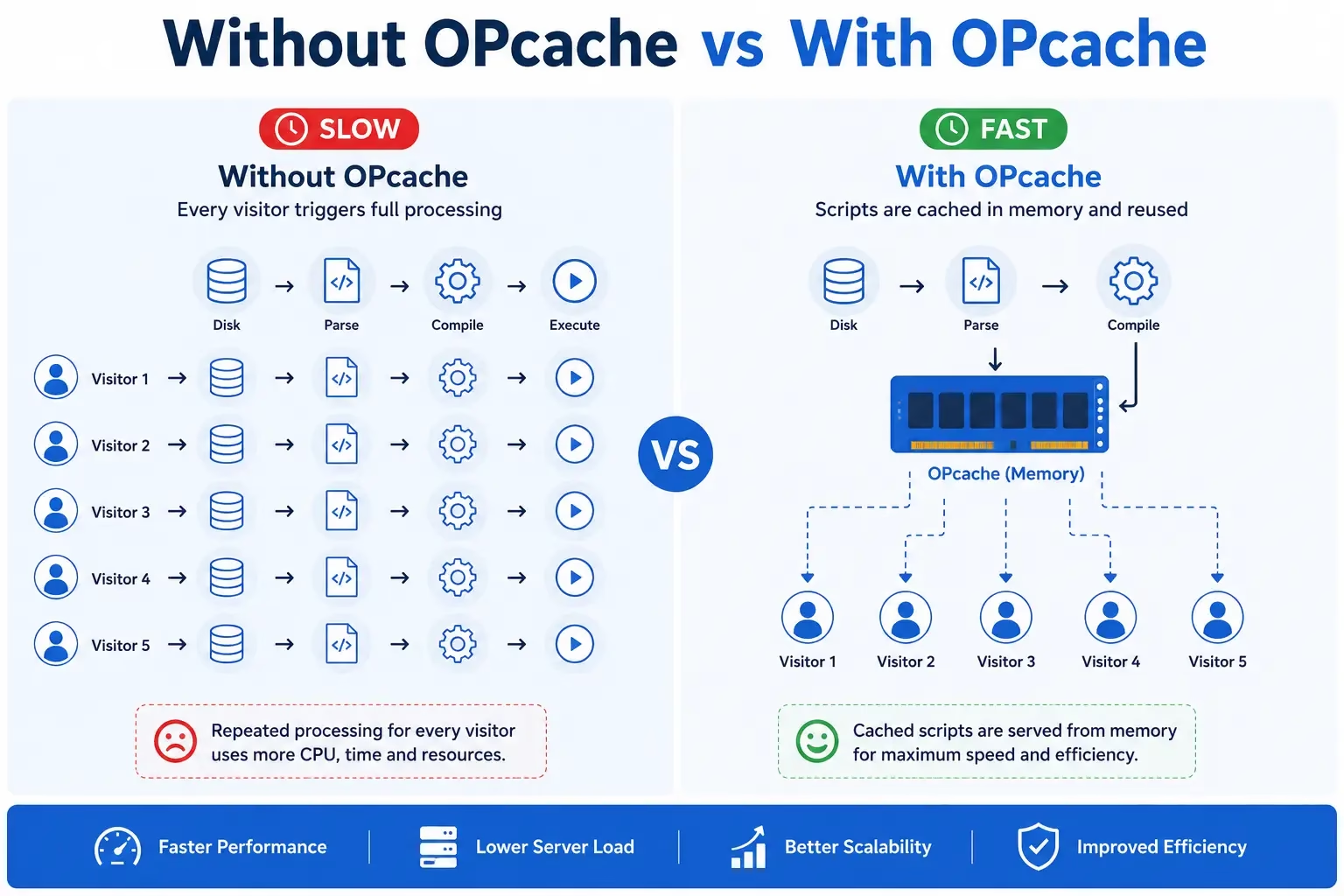
Here is the part that surprises most site owners: this compilation step happens on every single page load, for every single visitor, unless something is stopping it. Your homepage code does not change between visitor one and visitor five thousand, yet without OPcache, PHP recompiles it from scratch each time.
OPcache is a PHP extension, built directly into PHP since version 5.5, whose entire job is to store that compiled bytecode in shared memory (RAM) so PHP does not have to redo that work on the next request. It is not a plugin. It is not something you install from the WordPress plugin directory. It lives at the server level, inside your PHP configuration.
In plain terms: without OPcache, your server rebuilds your entire site’s PHP logic from scratch on every page view. With OPcache, it builds it once and reuses that work until the underlying files change.
2. How PHP Handles a Request Without OPcache
To understand why this matters for speed, it helps to walk through what actually happens behind the scenes when OPcache is missing or disabled.
| Step | What Happens |
|---|---|
| 1 | Visitor requests a page on your WordPress site |
| 2 | Server locates and reads every required PHP file from disk (core, theme, active plugins) |
| 3 | PHP parses each file’s syntax into an abstract structure |
| 4 | PHP compiles that structure into bytecode |
| 5 | The Zend Engine executes the bytecode and generates the page |
| 6 | The compiled bytecode is discarded once the request finishes |
| 7 | The next visitor triggers the exact same process again, from step 2 |
That repetition in step 7 is the expensive part. A typical WordPress page load, once you count core files, an active theme, and five or six plugins, can involve compiling several hundred PHP files. On a shared hosting server under real traffic, that repeated disk I/O and compilation work is one of the biggest hidden contributors to slow Time to First Byte (TTFB), which is a metric Google explicitly measures as part of page experience.
3. What Changes Once OPcache Is Turned On
Once OPcache is active, the process looks different starting from the second visitor:
- The first request compiles the PHP files as usual and stores the resulting bytecode in shared memory.
- Every request after that skips the read-parse-compile stages entirely and goes straight to execution.
- The cached bytecode stays in memory until a file changes on disk, or until the cache is explicitly cleared.
This is why enabling OPcache correctly is frequently the single biggest performance change you can make on a WordPress install, ahead of most caching plugins, because it addresses PHP execution time directly rather than working around it with static HTML snapshots.
To put a number on it: on a standard shared or VPS WordPress install, enabling OPcache with sane settings commonly cuts server-side PHP execution time by 30 to 70 percent, depending on plugin count and code complexity. That range is not marketing language, it is what shows up consistently in benchmark write-ups from hosting engineers and in our own load testing when auditing client sites.
4. OPcache vs Object Cache vs Page Cache
This is where most articles online get sloppy, and it is exactly why a search like “object cache vs opcache” gets typed into Google thousands of times with almost nobody finding a clear answer. These are three separate layers, and they solve three separate problems. You generally want all three working together, not one instead of another.
| Cache Type | What It Stores | Where It Lives | What It Speeds Up |
|---|---|---|---|
| OPcache | Compiled PHP bytecode | Server RAM, PHP-level | PHP script execution time |
| Object Cache (Redis or Memcached) | Results of expensive database queries | RAM, via Redis/Memcached server | Repeated database lookups (e.g. WooCommerce, complex queries) |
| Page Cache (WP Rocket, LiteSpeed Cache, W3 Total Cache) | Fully rendered HTML output | Disk or RAM | Skips PHP and database entirely for logged-out visitors |
A useful way to think about it: page cache skips PHP altogether by serving a saved HTML file. Object cache speeds up the database calls PHP has to make. OPcache speeds up PHP itself, the actual code execution. If your site relies heavily on dynamic, logged-in functionality (membership sites, WooCommerce carts, custom dashboards) where page caching cannot help much, OPcache and object cache become your two biggest levers, because those requests cannot be served from a static cache.
We cover the plugin side of this caching stack, including which page cache plugins to pick for different hosting environments, in our guide on best speed plugins for WordPress.
5. How to Check If OPcache Is Already Enabled
Before changing anything, confirm your current state. There are three reliable ways to do this.
Method 1: Site Health in WordPress
Go to Tools → Site Health → Info → Server, and scroll to look for an OPcache entry. Recent WordPress versions surface this directly.
Method 2: A phpinfo() file
Create a file named info.php in your site’s root directory with this content:
<?php phpinfo(); ?>Visit yourdomain.com/info.php, search the page for “opcache,” and check whether opcache.enable is set to On. Delete this file immediately after checking it, since leaving it live exposes server configuration details publicly.
Method 3: cPanel / Hosting Panel
Most hosts running cPanel expose this under Software → Select PHP Version → Extensions, where you will see a checkbox labeled opcache. If it is unticked, that is your answer, and also the most common cause behind the “opcode cache is not enabled” warning that plugins like WP Rocket or Query Monitor display.
6. How to Enable OPcache on Different Hosting Setups
The method depends entirely on what kind of hosting you are on. Here is the breakdown by environment.
On cPanel Hosting
- Log into cPanel.
- Open Select PHP Version under the Software section.
- Click Extensions.
- Find
opcachein the list and tick the checkbox. - Save. No server restart is typically required on shared cPanel environments since PHP-FPM pools reload automatically.
On a VPS or Dedicated Server (via php.ini)
Locate your php.ini file (commonly at /etc/php/8.x/fpm/php.ini or /etc/php.ini depending on your distro), and add or edit:
[opcache]
opcache.enable=1
opcache.enable_cli=0
opcache.memory_consumption=256
opcache.interned_strings_buffer=16
opcache.max_accelerated_files=20000
opcache.revalidate_freq=60
opcache.save_comments=1
Then restart PHP-FPM:
sudo systemctl restart php8.1-fpm(Adjust the version number to match your installed PHP.)
On Managed WordPress Hosting (Kinsta, WP Engine, Cloudways, SiteGround)
Managed hosts almost always have OPcache enabled by default at the platform level, and you typically cannot change these settings yourself because they are managed centrally for stability across their infrastructure. If you are on managed hosting and still seeing a warning, contact support directly rather than trying to edit server files, since most managed environments block direct php.ini access.
On WHM (for site owners managing their own server)
- Log into WHM.
- Go to MultiPHP INI Editor.
- Select the domain or PHP version.
- Set
opcache.enabletoOnand adjust memory settings as shown above.
7. Recommended OPcache Settings for a WordPress Site
Enabling OPcache with default values is better than nothing, but WordPress specifically benefits from a few adjustments, because it loads a large number of PHP files per request compared to a simple PHP application.
| Directive | Recommended Value | Why It Matters for WordPress |
|---|---|---|
opcache.memory_consumption |
256 (MB) | WordPress plus a handful of plugins can easily exceed the 128MB default, causing the cache to fill and reset |
opcache.max_accelerated_files |
20000 | A site with WooCommerce and 10+ plugins can have well over 10,000 PHP files; too low a limit causes cache churn |
opcache.interned_strings_buffer |
16 | Reduces memory duplication across the many repeated string values WordPress core uses |
opcache.revalidate_freq |
60 (or 0 with a deploy hook) | Controls how often PHP checks if files changed; 60 seconds balances freshness and performance on active sites |
opcache.validate_timestamps |
1 (during active development), 0 (only if you manually clear cache on deploy) | Turning this off on a live WordPress site with automatic plugin updates can serve stale code, so most site owners should leave it on |
opcache.save_comments |
1 | Required — many WordPress plugins depend on PHP docblock annotations to function correctly |
That last one trips people up constantly. Some generic PHP tuning guides recommend disabling comment saving to reduce memory use, but doing that on a WordPress install can break plugins that rely on annotation-based logic, so leave it on unless you have specifically verified otherwise.
8. Common Mistakes That Cause “Opcode Cache Is Not Enabled” Warnings
- Confusing OPcache with a caching plugin. Installing WP Rocket does not enable OPcache. They operate at completely different layers, as shown in the comparison table above.
- Switching PHP versions and forgetting OPcache resets per version. cPanel’s Select PHP Version tool treats each PHP version as a separate environment, so switching from PHP 8.0 to 8.2 means re-enabling OPcache under the new version.
- Setting memory too low, then blaming OPcache for not helping. If
opcache.memory_consumptionis too small for your plugin count, the cache fills up and starts evicting and recompiling files constantly, which can make performance worse than having it off, not better. - Leaving
validate_timestampsoff on a site with frequent plugin updates. This causes visitors to be served outdated PHP logic until the cache is manually cleared, which shows up as “my update didn’t apply” support tickets. - Assuming shared hosting automatically has it enabled. Many budget shared hosts leave it off by default to conserve shared server memory across all their customers, which is exactly why this warning shows up so often on lower-tier hosting plans.
9. Does OPcache Affect SEO and Core Web Vitals
Indirectly, yes, and it is a more meaningful connection than people assume. Google’s Core Web Vitals include metrics like Largest Contentful Paint (LCP), and server response time is a direct contributing factor to LCP, since nothing on the page can render until the server has finished generating and sending the HTML.
Reducing PHP execution time through OPcache directly reduces TTFB, which is one of the first dominoes in the loading sequence. A slow TTFB delays everything downstream: CSS loading, JavaScript execution, image rendering, and ultimately LCP itself. Google has stated publicly that page experience signals, including loading performance, are part of ranking considerations, particularly in competitive niches where content quality is otherwise similar.
This does not mean enabling OPcache alone will move rankings on its own. It means it removes one of the structural bottlenecks that make every other optimization (caching plugins, image compression, CDN delivery) perform better, because those optimizations are operating on a faster baseline instead of fighting against slow PHP execution underneath them.
If you are working through a broader technical SEO pass on your site, our on-page SEO checklist is a good next stop after your server-side performance is sorted, since content and metadata optimizations perform best once the technical foundation is solid.
10. OPcache Checklist Table
Use this as a quick reference before you consider the job done.
| Task | Status |
|---|---|
| Confirmed current OPcache status via Site Health or phpinfo() | ☐ |
| Enabled OPcache extension in cPanel or php.ini | ☐ |
| Set memory_consumption to at least 256MB | ☐ |
| Set max_accelerated_files to 20000 or based on actual file count | ☐ |
| Confirmed save_comments is set to 1 | ☐ |
| Set a sensible revalidate_freq for your update frequency | ☐ |
| Removed the temporary info.php file if one was created | ☐ |
| Re-tested site speed with a tool like GTmetrix or PageSpeed Insights | ☐ |
| Verified OPcache is re-enabled after any PHP version switch | ☐ |
11. Frequently Asked Questions
Does OPcache work with WooCommerce?
Yes, and it matters more there than on a typical site, since WooCommerce pages involve additional PHP logic for cart calculations, session handling, and inventory checks on nearly every request. Pair it with an object cache like Redis for the database side of WooCommerce performance.
Will enabling OPcache break my site?
Enabling it with sensible memory settings almost never breaks a functioning site. Problems occur when memory limits are set too low for the number of active plugins, which causes cache churn rather than outright failure.
Do I need to clear OPcache after updating plugins?
If opcache.validate_timestamps is set to 1 (the safer default), PHP checks for file changes automatically within the interval you set. If you have it disabled for maximum performance, you need to manually restart PHP-FPM or use a cache-clearing hook after deployments.
Is OPcache the same as a CDN?
No. A CDN caches and delivers static assets like images, CSS, and JavaScript from servers geographically closer to the visitor. OPcache operates entirely on your origin server and only affects PHP execution, not asset delivery.
Can I check OPcache status without editing server files?
Yes, several free OPcache status plugins exist for WordPress that display hit rate, memory usage, and cached file count directly from your dashboard, which is a safer route than creating a phpinfo() file if you are not comfortable deleting it afterward.
A Note on Priorities
If your site is currently slow and you are debating where to start, server-level PHP performance almost always deserves attention before visual or content changes, because it affects every single page on the site at once rather than one page at a time. It is also a setting you configure once and generally do not have to revisit, unlike ongoing tasks like content optimization or link building.
If you want a second opinion on your current setup, our team at Skills Nexus Pro handles WordPress performance audits as part of our broader WordPress and web development services, alongside the SEO services that tend to matter more once the technical side is no longer holding a site back.